
Everyone on a private channel gets their own personal feed address. You can invite people one at a time, import a list, or let them sign up with a link. For the link, see Let listeners sign themselves up.
Don’t have a private channel yet? See Add a channel to your show.
Invite one person
- Click Channels in the left menu and open your private channel.
- Go to the Listeners tab and click Invite listener.
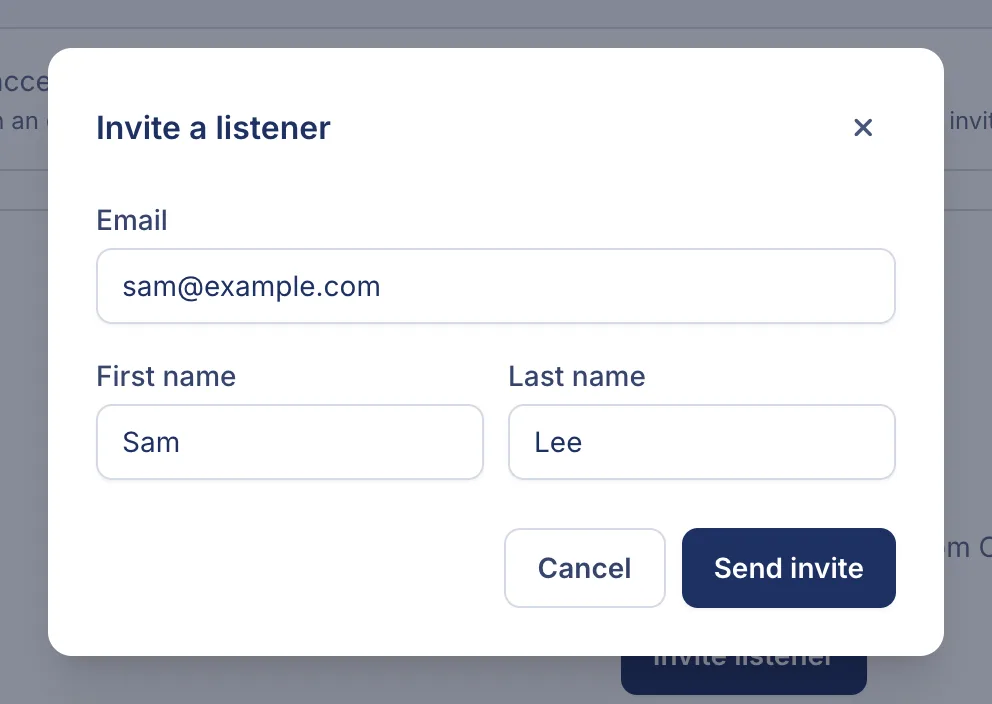
- Enter their Email. First name and Last name are optional, but the invitation greets them by name.
- Click Send invite.
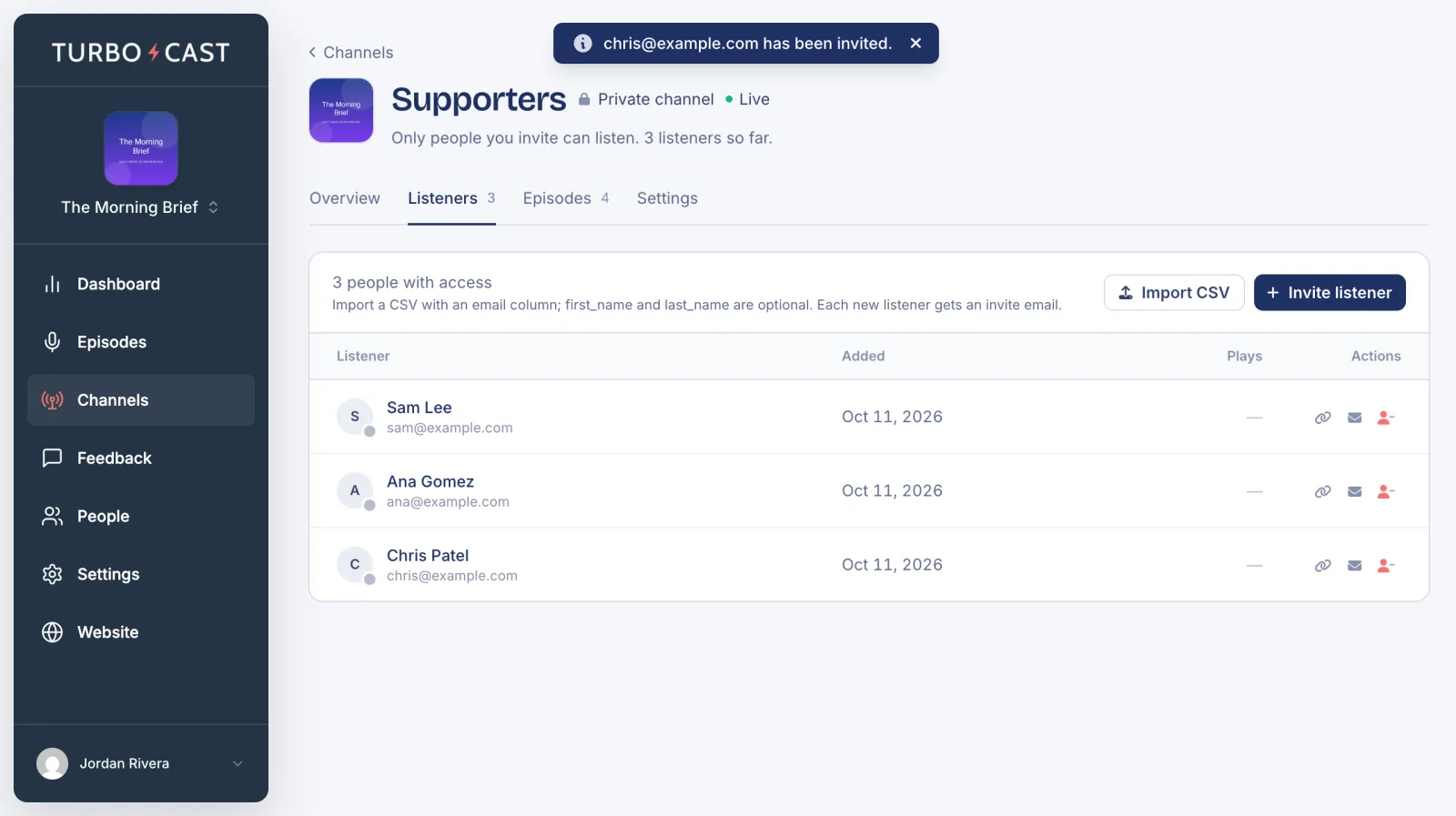
They’re added to the list straight away, and the invitation is on its way.
Import a list
To invite lots of people at once, save your list as a CSV file with an email column. first_name and last_name columns are optional. For example:
email,first_name,last_name
[email protected],Sam,Lee
[email protected],Ana,Gomez
On the Listeners tab, click Import CSV and choose the file. The import starts as soon as you pick it. Each new listener gets an invitation, and TurboCast tells you how many were invited, how many already had access, and how many rows it skipped because they had no valid email address.
What your listener receives
Each listener gets an email with their personal feed link and one-tap buttons for Apple Podcasts, Overcast, Pocket Casts and Castro. In any other app, they choose “Add by URL” or “Subscribe by RSS” and paste the link.
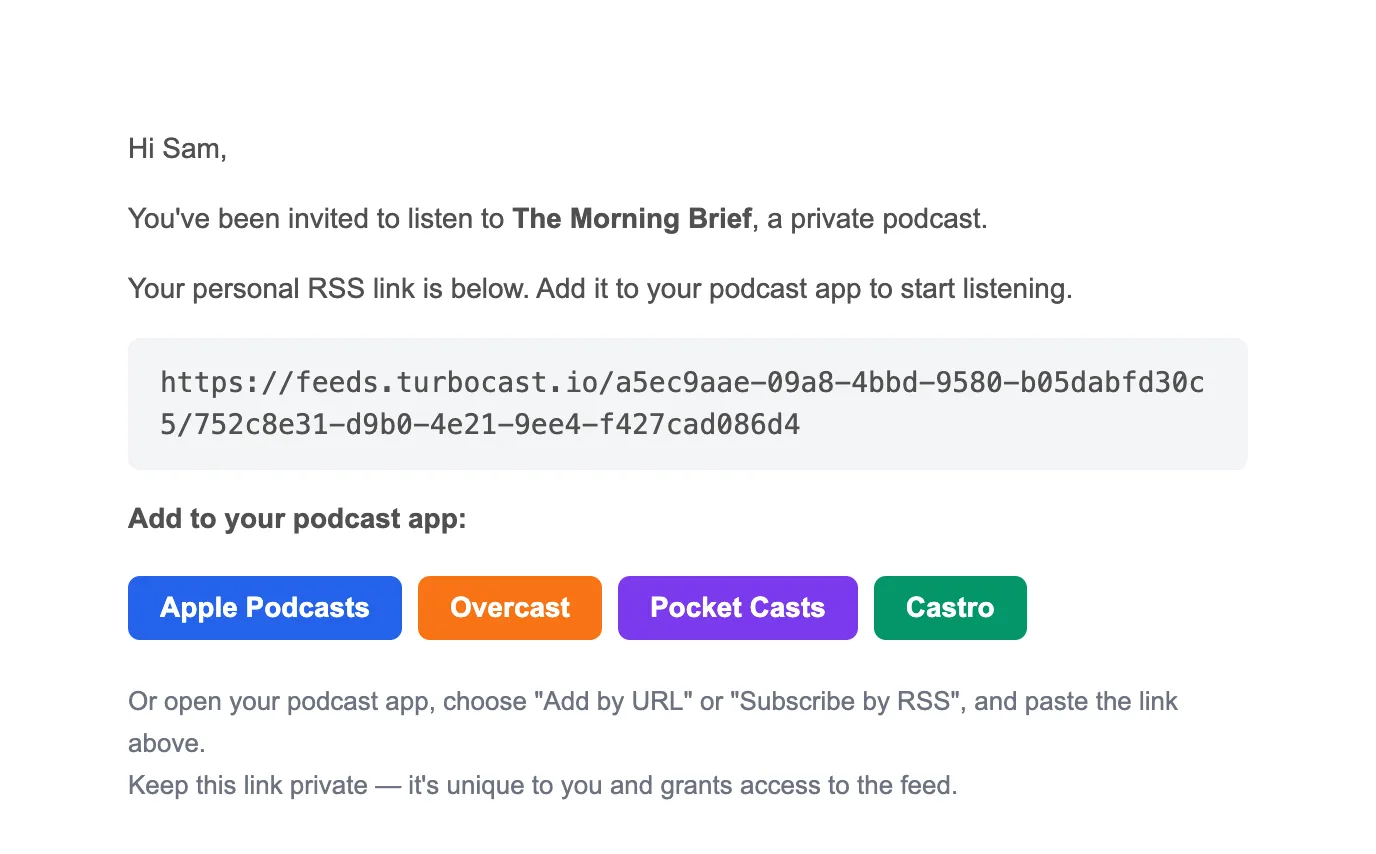
After that, they get an email whenever a new episode reaches the channel. Each email has a link to stop those emails; their feed keeps working either way.
Next
- Manage private listeners: resend an invitation or remove someone’s access.