
Connect is for shows that stay with their current host. TurboCast reads your existing feed and copies each episode’s details into a private channel, so you can offer a members-only feed without moving anything. The audio stays with your current host and plays from there. You keep publishing where you always have.
Step 1: Choose Connect a show
On the start screen, choose Existing show, then Connect your show. If you already have a show in TurboCast, click your show’s name at the top of the left menu, choose Create New Show, then Connect a show.
Step 2: Paste your feed address
Paste your show’s RSS feed address from your current host into RSS feed URL and click Preview feed.
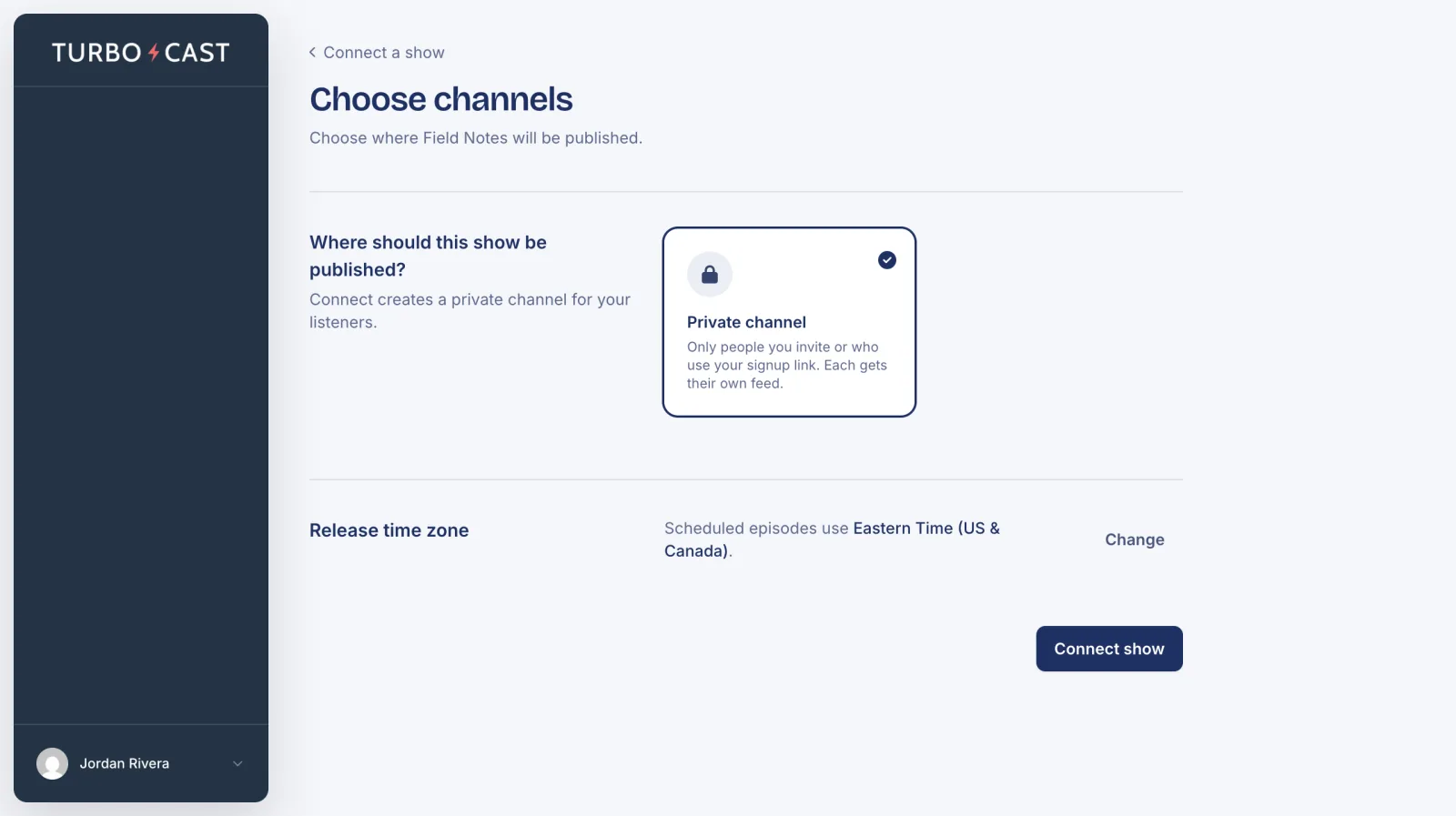
Step 3: Confirm the private channel
Connect always creates a Private channel, so it’s already chosen. Check the Release time zone, then click Connect show.
TurboCast copies your existing episodes into the private channel, then checks your feed every hour for new ones.
Step 4: Invite your listeners
Your private channel works like any other. Invite people by email, import a list, or share a signup link. See Invite listeners to a private channel.