
Click Episodes in the left menu, then New episode. The New episode button on your dashboard does the same.
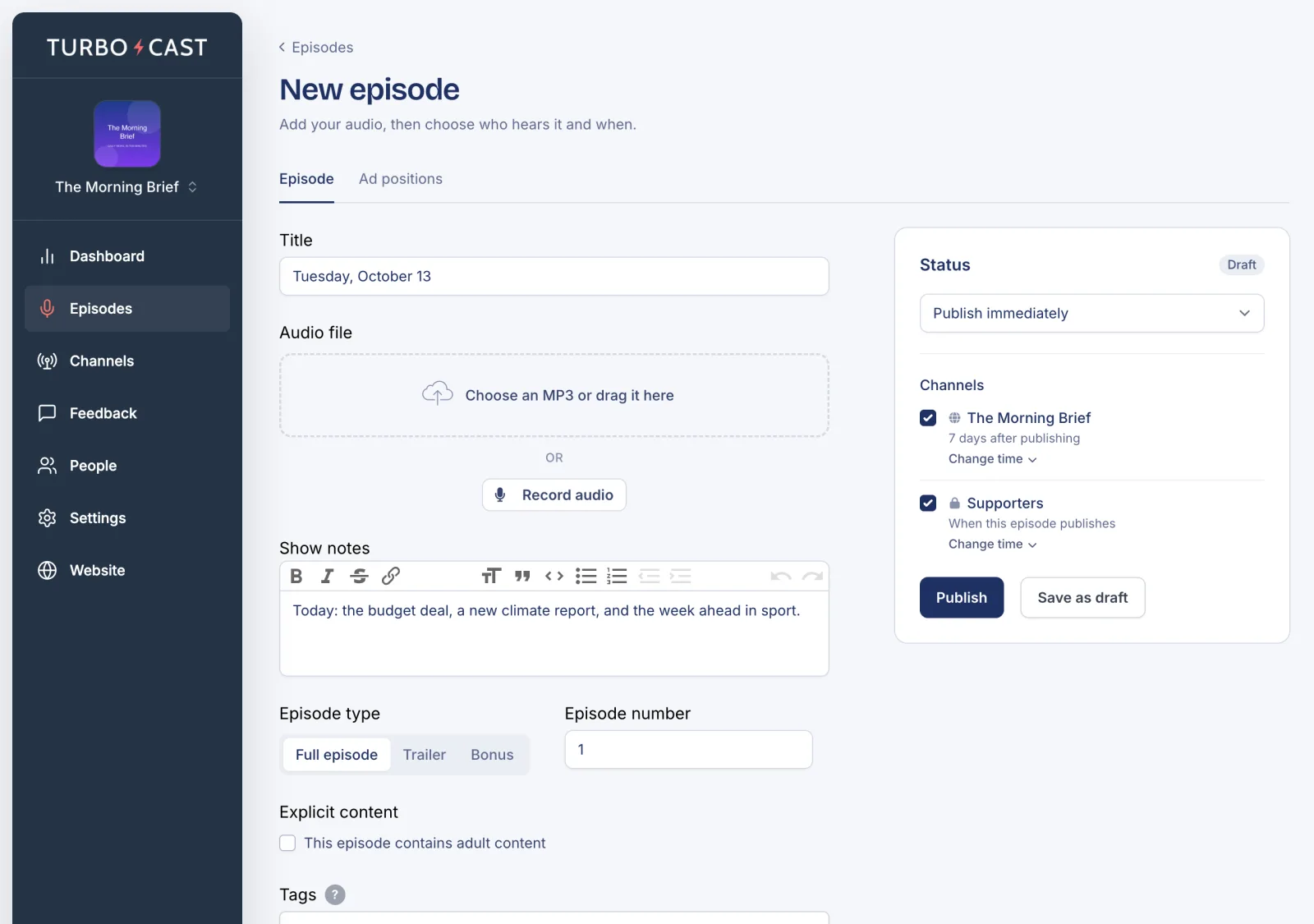
Step 1: Add a title and audio
Type the episode’s Title. Then add your audio in one of two ways:
- Upload an MP3: drag it onto the box, or click the box to choose one.
- Record audio: record straight from your microphone in the browser.
The file uploads while you fill in the rest of the episode.
Step 2: Add the details
Everything else is optional, but helps listeners and podcast apps:
- Show notes: what the episode is about, with links. Podcast apps show these under the episode.
- Episode type: Full episode, Trailer or Bonus.
- Episode number, and Season number if your show uses seasons.
- Explicit content: tick it if this episode contains adult content.
- Tags, Episode cover art (JPG or PNG; without it the show’s artwork is used) and a Transcript.
Step 3: Choose the channels
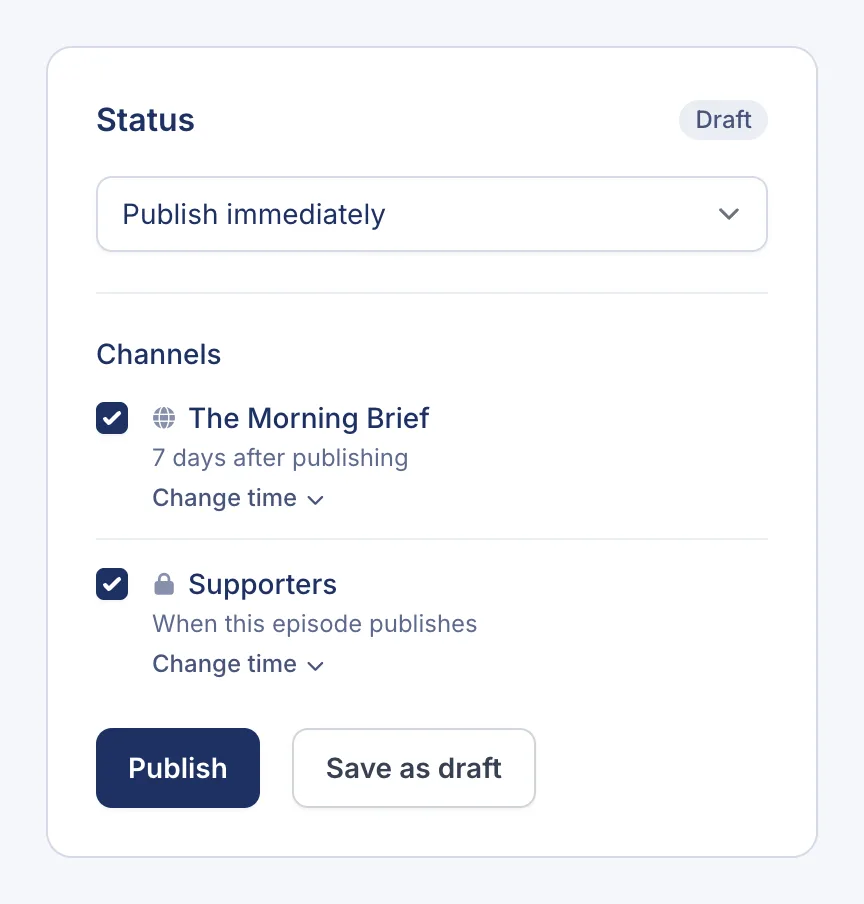
The Status panel on the right lists your channels under Channels. Each ticked channel gets the episode, and the line under each one says when. Untick any channel that shouldn’t get it. See Choose which channels get an episode.
Step 4: Publish or save a draft
- To publish now, leave Publish immediately selected and click Publish.
- To publish later, choose Schedule publish date. See Schedule an episode.
- Not finished? Click Save as draft. Drafts aren’t on any channel until you publish them.
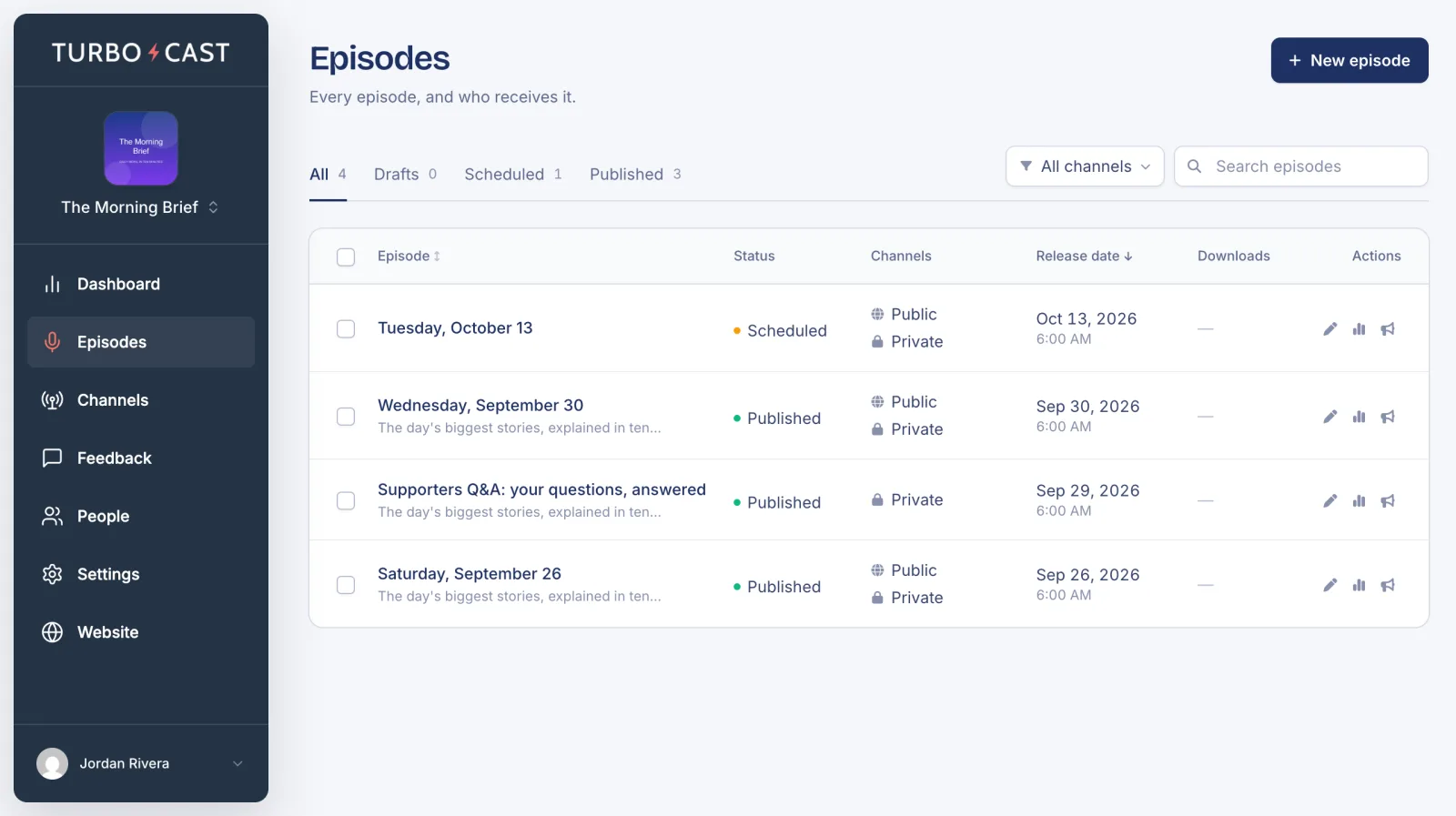
The Episodes page lists all your episodes, including drafts, with the channels each one went to.
To change, unpublish or delete an episode later, see Edit, unpublish or delete an episode.