
Scheduling lets you finish an episode now and have it go out later, at a set date and time.
Schedule a new episode
- Create the episode as usual: title, audio and details. See Create and publish an episode.
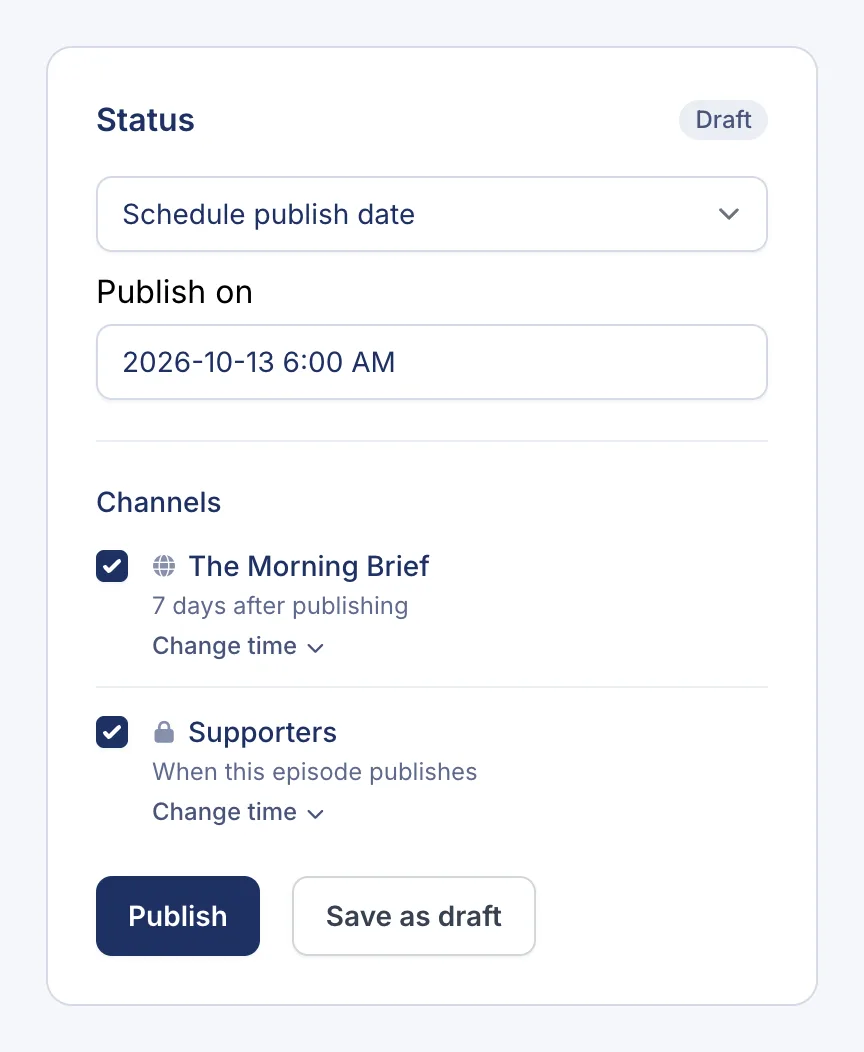
- In the Status panel, change Publish immediately to Schedule publish date.
- Under Publish on, pick the date and time.
- Check the channels below. Each one says when it will get the episode.
- Click Publish.
The episode’s status changes to Scheduled, and the panel shows exactly when each channel gets it.
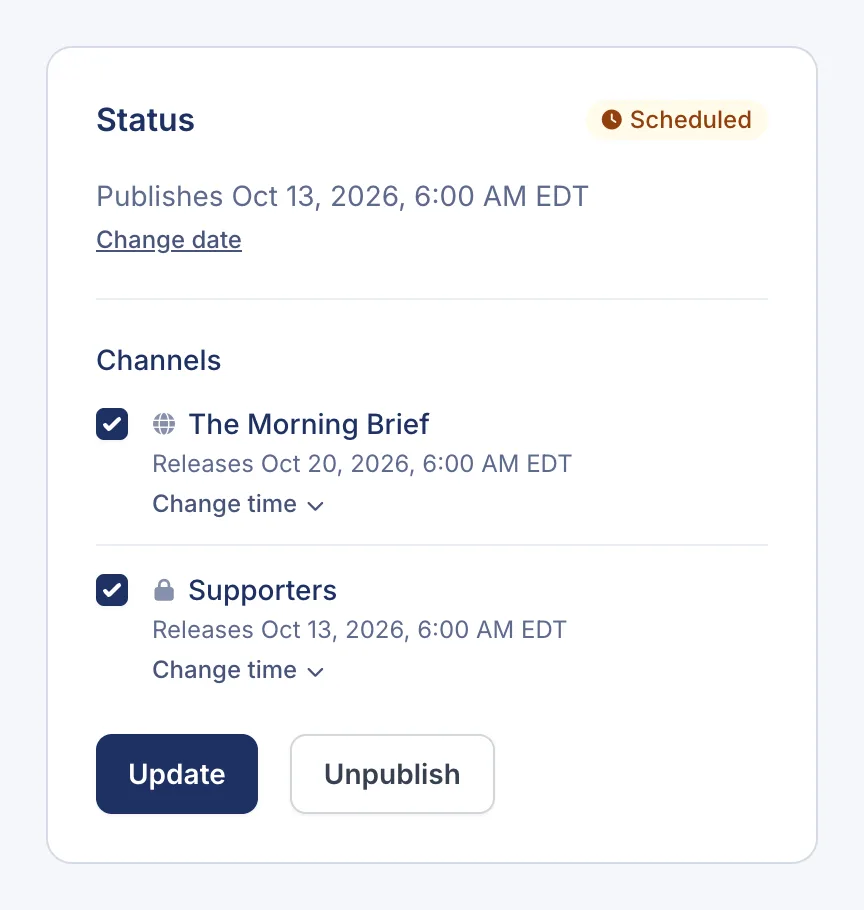
When each channel gets it
The Publish on time is when the episode is published. Each channel then releases it according to its own Release timing: straight away, after a delay, or at a set time of day. In the example above, the public channel waits seven days after publishing.
To change that for every episode, edit the channel’s release timing. To change it for one episode, use Change time under that channel. See Release episodes early to private listeners.
Change the date or cancel it
Open the episode from the Episodes page. In the Status panel:
- To change the date, click Change date under the publish time, pick the new date and time, and click Update. Each channel’s release time moves with it, and the line under each channel shows the new time.
- To cancel the schedule, click Unpublish. The episode goes back to being a draft and won’t go out.
You can change the title, audio and show notes of a scheduled episode at any time. Click Update to save them; the schedule stays as it is.
See what’s coming up
On the Episodes page, the Scheduled tab lists every episode whose publish date is still to come. An episode that’s already published but waiting out a channel’s delay is under Published; open it to see when each channel gets it.