
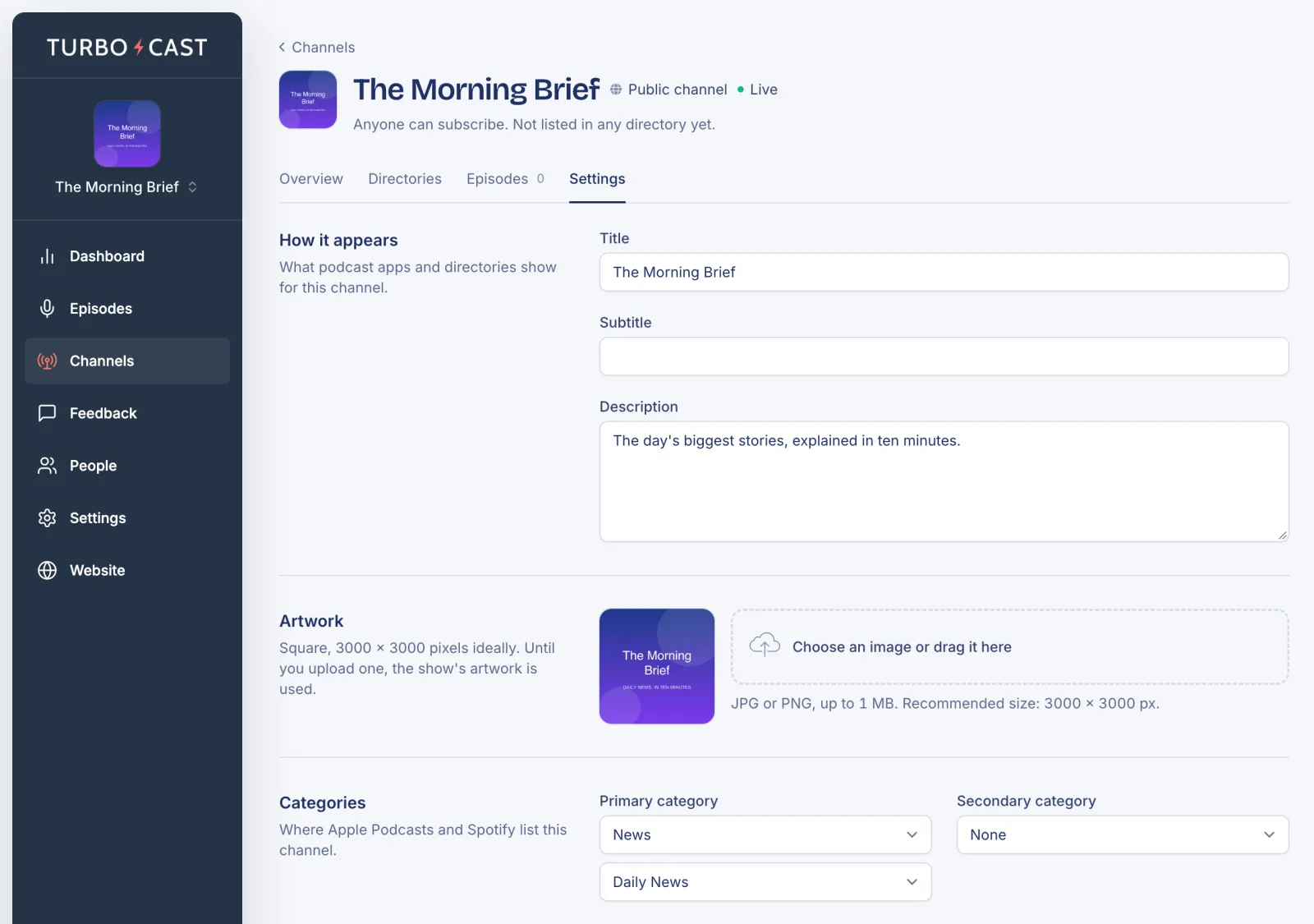
Each channel has its own name, artwork and podcast details. Until you change them, a channel uses your show’s. To change them, click Channels in the left menu, open the channel and go to its Settings tab.
When you change something, a bar appears at the bottom of the screen. Click Save changes to keep it, or Discard to put everything back.
What you can change
A private channel isn’t listed in directories, so its Settings tab leaves out the fields only directories use. Those are marked public channels below.
How it appears. The channel’s Title and Description, as podcast apps show them. Public channels also have a Subtitle.
Artwork. Square, ideally 3000 × 3000 pixels, JPG or PNG. Without its own artwork, the channel uses your show’s.
Categories (public channels). Where Apple Podcasts and Spotify list the channel.
Owner and rating. The author, show type and whether it’s explicit. Public channels also have the owner email (Apple uses it to confirm the show is yours), language, copyright and Feed lock. On a private channel this section is called Author and rating.
Feed address (public channels). Your feed’s permanent address never changes. You can add an Alias, a friendlier address to share, such as https://feeds.turbocast.io/morning-brief. Always give directories the permanent address, since an alias can be changed later.
Availability. Set Channel status to Disabled to turn the channel off. Its feed stops working until you set it back to Active.
New episodes. With Add new episodes automatically ticked, every new episode is ticked for this channel when you publish it. Untick it if this channel should only get episodes you choose.
Release timing. When new episodes go out on this channel. See Release episodes early to private listeners.
Self-serve signup (private channels). Whether people can sign themselves up with the channel’s link. See Let listeners sign themselves up.
Choose which episodes are on the channel
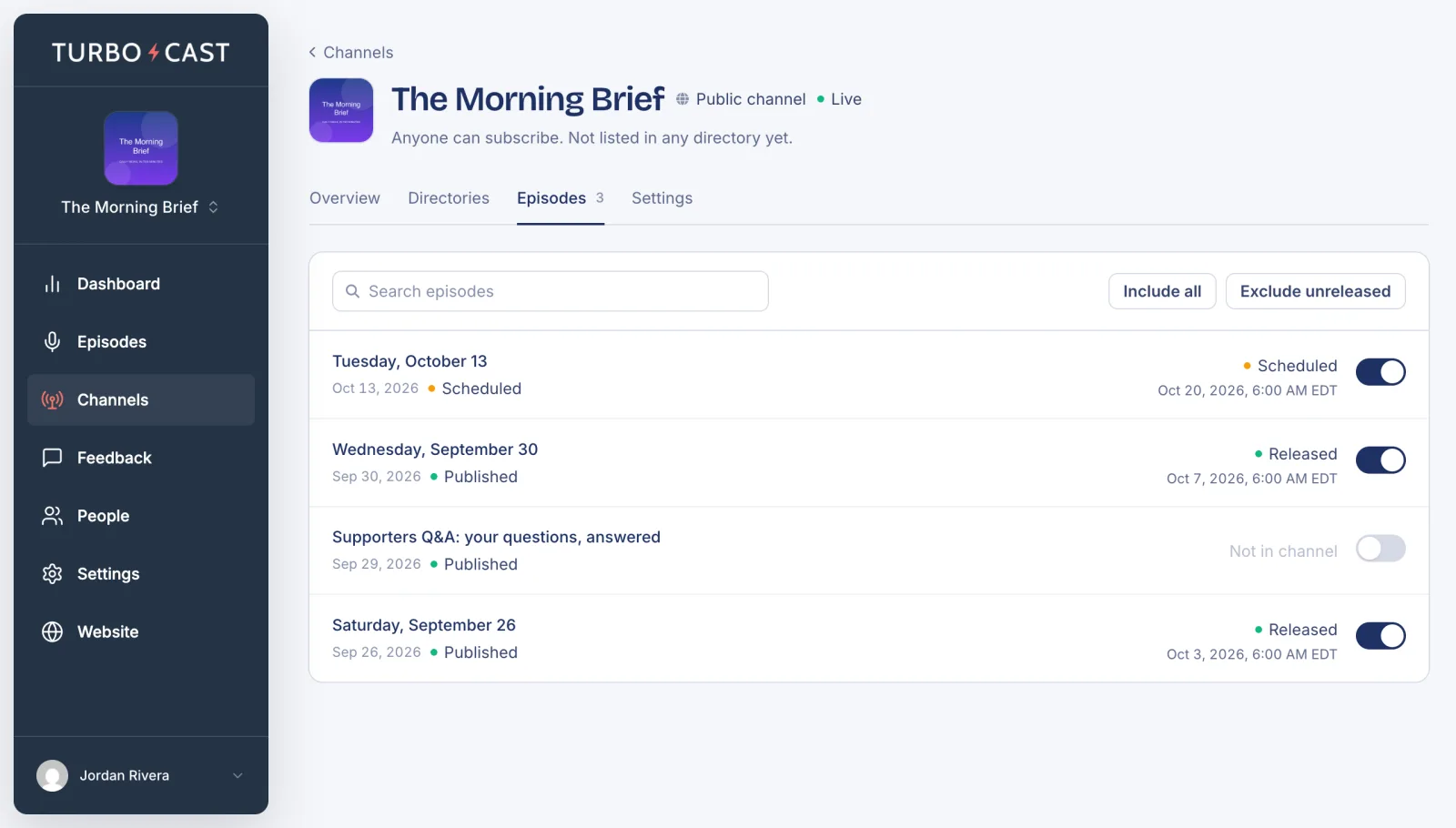
The channel’s Episodes tab lists every episode in your show, with a switch beside each. Turn the switch on to add an episode to this channel, or off to remove it. Include all adds every episode. Exclude unreleased removes every episode that hasn’t gone out on this channel yet.
Adding an episode that’s already out doesn’t email anyone, whether you turn on one episode or use Include all. You can fill in a private channel’s back catalog without flooding your listeners’ inboxes.
Archive a channel
At the bottom of the Settings tab, click Archive channel. Its feed stops working for good, and private listeners lose access. Your episodes and analytics are kept. Archiving can’t be undone, so if you might want the channel again, turn it off under Availability instead.